
Using the latest model Flame Boss 550 is quick and easy. If this is your first-time setup, follow the steps below to get connected.
1. Download the Mobile App
Download the Flame Boss mobile app for your device:
◉ iOS: https://apps.apple.com/us/app/flame-boss/id1457139626
◉ Android: https://play.google.com/store/apps/details?id=com.flameboss
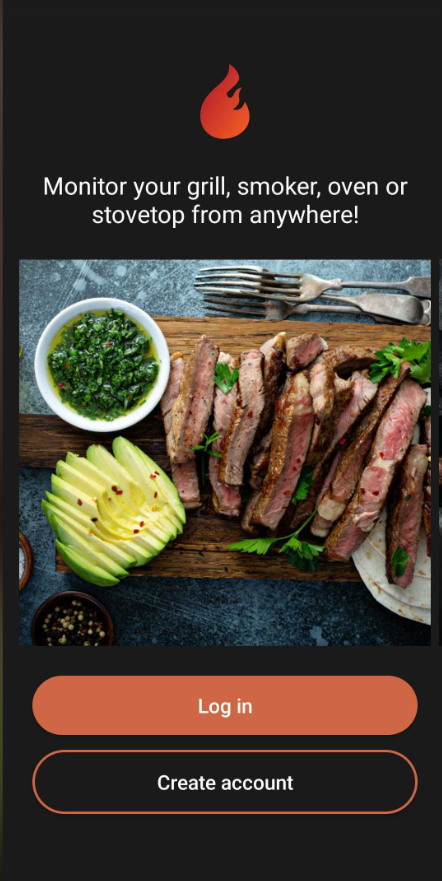
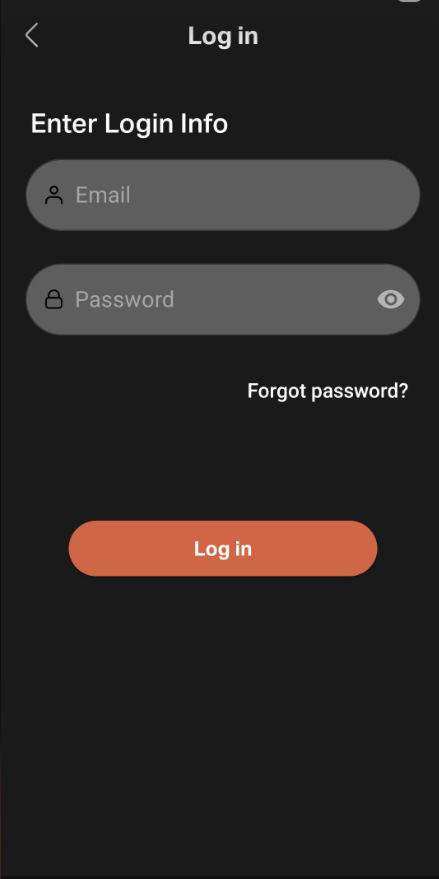
2. Log Into the App
Create a new account, or
Enter your existing login credentials.
3. Power the Controller
Plug your new Flame Boss 550 into the power supply.
4. Pair with Bluetooth
Bluetooth will automatically engage and load your FB550 into the app.
A Pair button will appear.
Note: If the controller does not appear, make sure Bluetooth is enabled on your phone.
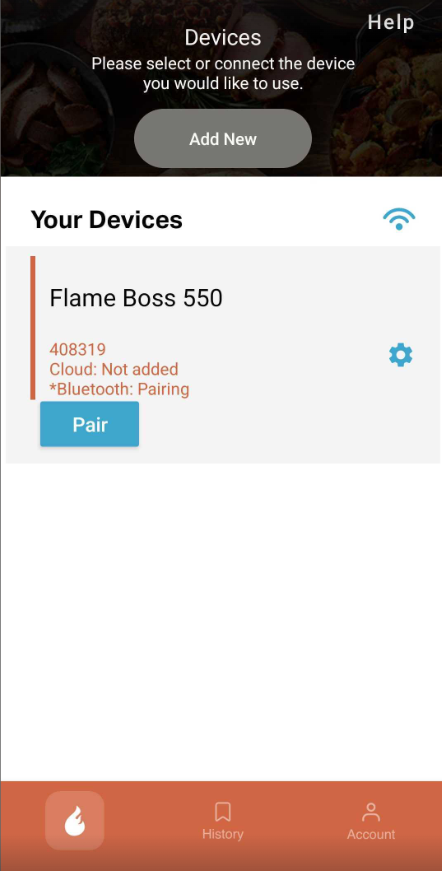
5. Start Pairing
Select the Pair button.
You should then see: Bluetooth: Ready
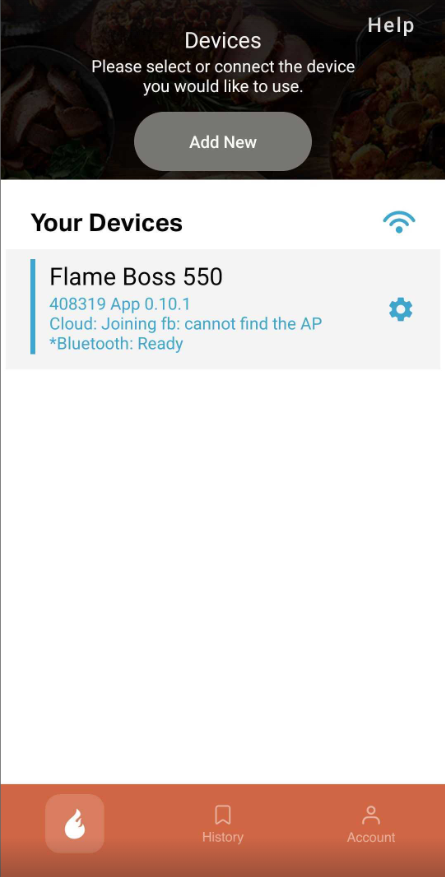
6. Connect to WiFi
A Setup WiFi button will appear.
Select Setup WiFi.
Choose your 2.4GHz home WiFi network from the list of available networks.
Enter your WiFi password.
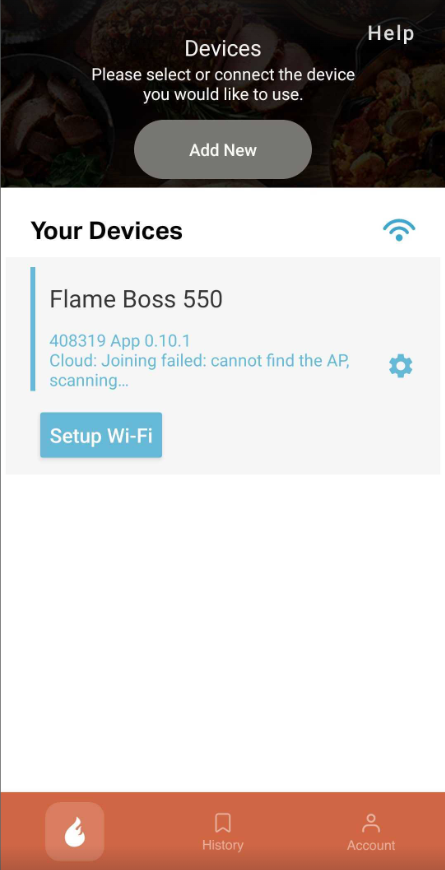
Note: If the Setup Wi-Fi does not show select the blue settings gear > Update for WiFi Settings > select your WiFi network name to add your WiFi credentials
7. Confirm Connection
Once connected, the status will show:
Cloud: Ready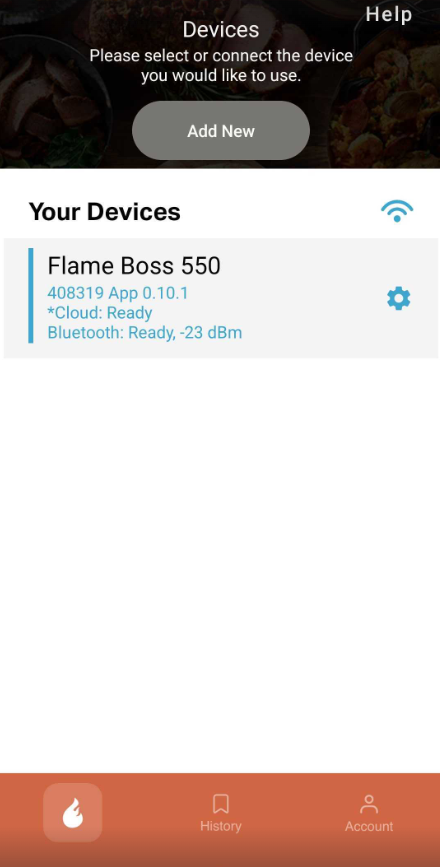
8. Open the Cook Settings
Tap the blue lettering to open the Cook Settings page.
✅ Your Flame Boss 550 is now connected and ready to use.
Below is a video that may help.