
AT&T has a firewall named Active Armor, which blocks our IP address. You will need to disable it using the Smart Home Manager app. Once the Egg Genius has connected to your Wi-Fi router, you can re-enable it. You can disable AT&T ActiveAmor via Mobile App "Smart Home Manager" and tap on upper right for "Chat" icon, then send a message "disable activearmor", then "Yes'.
The Egg Genius will only connect to a 2.4 GHz connection. Please be sure that your 2.4 GHz connection is enabled and discoverable. You may need to contact AT&T to confirm.
Once the above steps have been done, you can set up your Egg Genius or Flame Boss to your WiFi Router using the steps below.
- Plug up your Flame Boss or Egg Genius
- Device needs to be in Access Point Mode
- Flame Boss 400/Egg Genius: slow blink mode. (Press the pin in between the pit and meat jack once using a paperclip if not in slow blink) (Slow blink = 1/sec)
- Flame Boss 500, 300, 200V2: Access Point Mode (Next button > WiFi > WiFi Mode > See Station > select the UP button to change it to Access Point > press Next button
- Open the Flame Boss or Egg Genius mobile app
- Select the Add New button at the top of the "Devices" page
- There are three options available. Use the first option for the serial number
- Enter the serial number found on the neck or back of the controller.
- See Flame Boss/Egg Genius Wifi Instructions and select Join FB Wi-Fi
- See FB-####### and select Join
- You'll receive a Success notification once your phone has connected to your controller. Then select OK
- You will be taken back to the Devices tab
- See your Flame Boss/Egg Genius device showing and select the Blue "Setup WiFi" button
- See your home WiFi network name and select it
- Then enter the password for it.
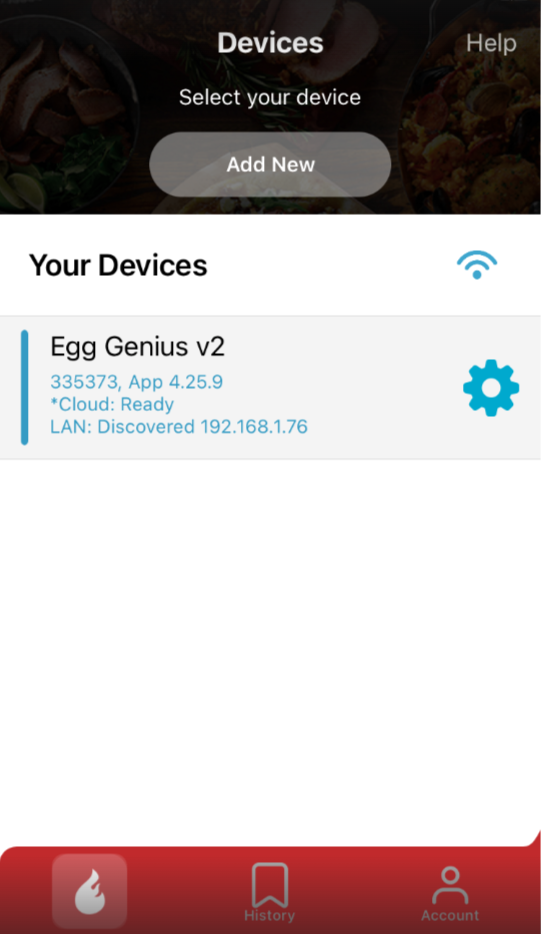
- The Flame Boss/Egg Genius will then show online and do a firmware update if needed. (See screenshot below)
Here is a video that may help: https://youtube.com/shorts/SROAEDQNhk0?feature=share
Please let us know if further assistance is needed.
* Be sure to re-enable Active Armor by using the Chat Icon via the Smart Home Manager Mobile App, send a message "enable activearmor", then "Yes"